Add variables
|
|
If variables are enabled in your project, you can add them within text in the item content (such as the question or response options). Variables are used to randomizes specific content such as names and numbers. Each variable has a set of approved replacements values that are randomly selected to display to the candidate during exam delivery.
 In a given item, the same replacement value is used for each variable. This rule also applies across items that are part of a case (when cases are exported as sections). View the example below for more details.
 - Variables are not the same as dynamic text. Variables are chosen for randomized display based on a set of approved values that are configured in ExamDeveloper, while the content of dynamic text is presented during exam delivery based on predefined scripts.
Example variables use caseExample variables use case
If the item bank manager creates a variable first.name with the
replacement values of Bob, Sally, and Tiger, and another variable trial.number with the values 1, 2, and 3, an author can add these variables in the item stem. For example, the stem could be: "If {{first.name}} is reviewing lab results and must report the findings from Trial {{trial.number}}, which data should be included in the lab report?"
Upon delivery of the exam, the item stem will randomly display one of the values for each variable so that candidates see different versions of the question. In each item, the same replacement value is used for each variable. For example, if "Sally" is randomly selected for the first.name variable in item 123456, "Sally" will be used wherever the first.name variable is present in item 123456.
Add a variable
- Place your mouse cursor in the desired location or the Stem, Response, or Passage.
- Some fields do not support variables. View unsupported fieldsView unsupported fields
- Drag and drop objects
- Essay Initial response fields
- Ordered list response options
- Drop down response options
- Fill in the blank response options
- Inline drag and drop response options
- Inline drag and drop targets
- In the editing toolbar, click Insert variable and choose a variable to add.
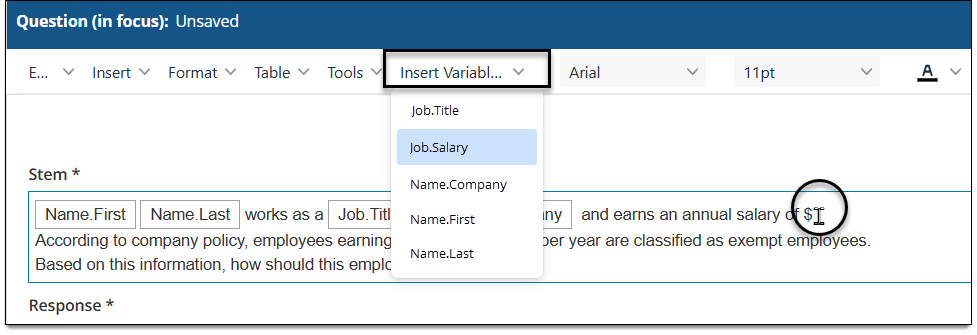
- The variable placeholder is now added to the item content.
Delete a variable
- Place your mouse cursor at the end of the variable placeholder inside the stem/passage/response option.
- Press the Backspace or Delete button on your keyboard.